How to Free Up Storage on an Android Phone
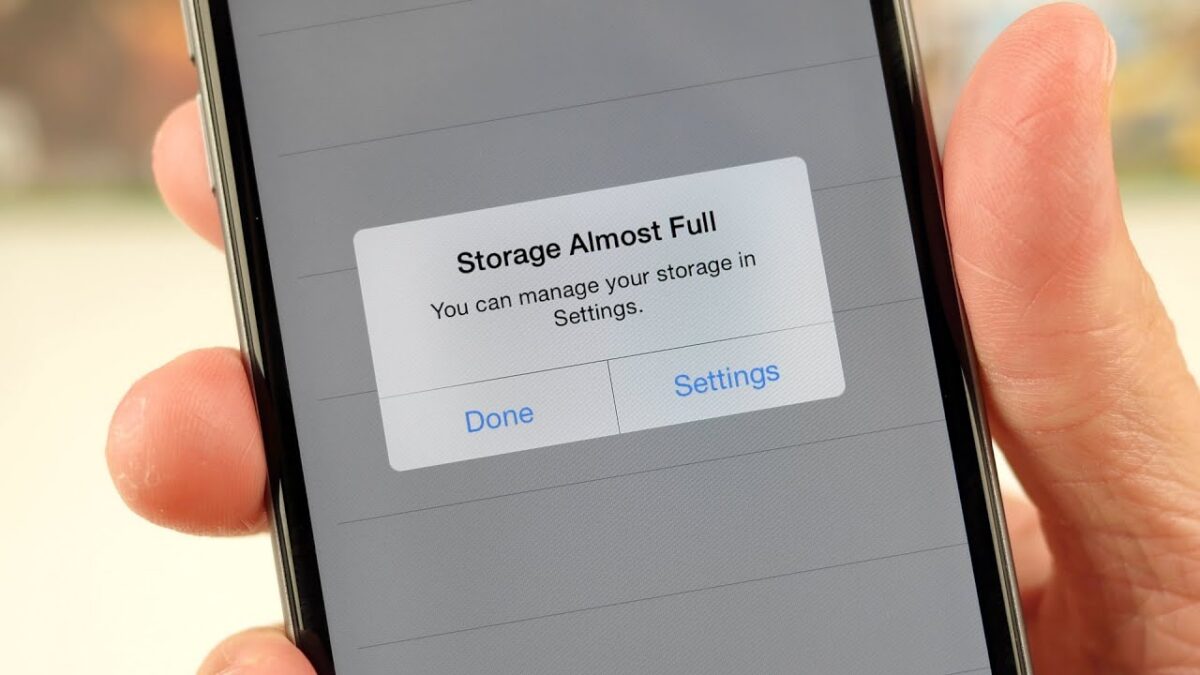
Fact-checked on
In this article
To free up storage on an Android phone, check what is taking up space, back up files you want to keep, and remove large downloads, unused apps or safely backed-up photos. Clearing cache can help, but it is not the same as adding physical storage capacity.
Storage holds your photos, videos, downloads and apps. Memory, or RAM, is the working space used by running apps. Buying extra cloud storage does not automatically increase either the phone’s built-in storage or its RAM.
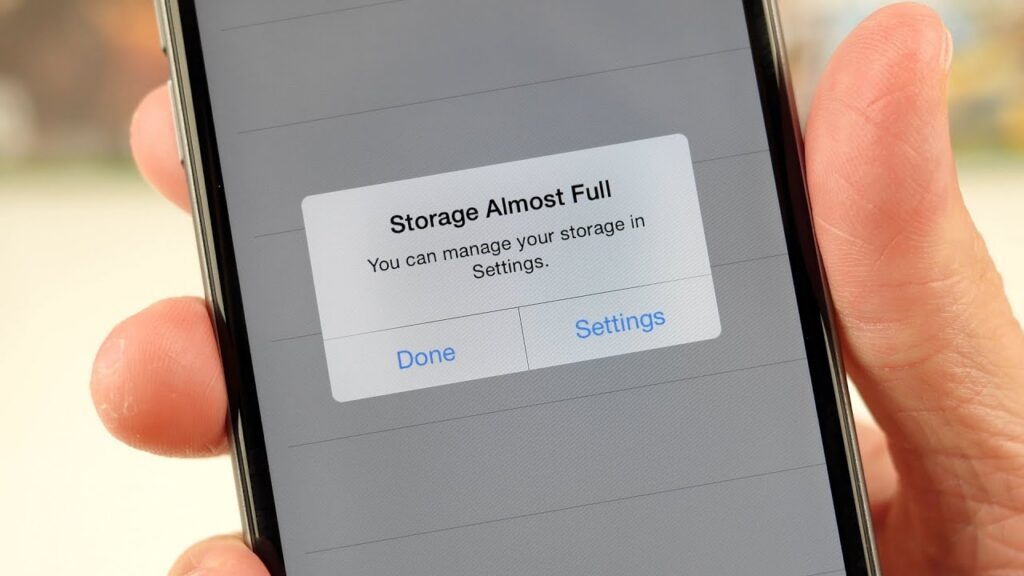
Before you start
- Back up important files and confirm that you can open the copies.
- Check that you know the sign-in details for apps you may uninstall.
- Read deletion prompts carefully, especially when an app syncs with a cloud account.
Menu names differ between manufacturers and Android versions. Use the Settings search box if the paths below do not match your phone.
1. Find what is using the space
Open Settings → Storage and review the categories. Where available, choose Free up space to see suggested files and apps. Start with the largest unnecessary items instead of deleting contacts or call logs, which is not an effective general storage strategy.
Review suggestions before accepting them. Do not delete a file simply because an app labels it old or large.
2. Remove or archive apps you no longer use
Uninstall unused games and apps after checking whether their data needs a separate backup. You can generally download a purchased app again without buying it again, but recoverable app data depends on the app and its backup arrangements.
Supported devices and apps offer archiving, which removes much of an app while retaining its personal data and icon. Google Play’s automatic archiving setting is under your profile → Settings → General → Automatically archive apps, where available. Restoring an archived app depends on it still being available on Google Play.
3. Back up photos and videos, then remove local copies
Videos and photos can occupy considerable space. Copy selected files to a computer with a USB cable, check that the copied files open, and only then remove the originals from the phone.
If you use Google Photos, confirm that backup has completed to the correct account and use its dedicated free-up-space function to remove backed-up device copies. Do not assume that pressing Delete in a synced photo library removes only the copy on the phone.
Remember that accessing online-only copies may require internet access and use mobile data.
4. Delete unwanted downloads and offline media
Review the Downloads folder and remove files you no longer need. Also check streaming, music and messaging apps for downloaded videos, audio and other large files.
Use each app’s download or storage controls where possible so that you can identify the content before deleting it. Removing an offline download is not the same as cancelling the service or deleting the online item.
5. Clear selected app caches
Open Settings → Apps, select an app, then look for Storage & cache or a similar label. Choose Clear cache if you want to remove temporary files. Some apps may load more slowly at first and rebuild the cache later.
Warning: Clear storage or Clear data permanently deletes an app’s stored data. It is not the same as Clear cache. Back up important app information before using it, and try deleting unwanted content inside the app first.
What if the phone is still full?
Recheck Storage to identify the remaining large category. Keep only files you need on the device and move verified copies elsewhere. These steps reclaim existing capacity; they cannot turn a fixed-capacity phone into a higher-capacity model.
If your phone supports removable storage, consult its manufacturer’s instructions before buying a memory card or formatting one. Support and usable options depend on the handset.