How to Scan a Document with Your Phone
Fact-checked on
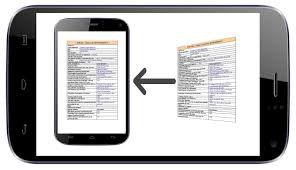
You can use a phone to turn a paper document into a digital file. A scanning feature helps you frame and crop pages, but you should still check the finished file before sharing it.
What You Need
Have the document, a phone with a working camera and the Google Drive app on Android or iPhone. Use good light and a flat surface. Check whether the receiving service requires a PDF, image or certified copy.
Scan with Google Drive
- Open the Drive app and choose the camera or Scan option. Its position may vary by device.
- Place the whole page within the camera view and capture it.
- Review the edges and adjust the crop or rotation if needed.
- Add further pages when scanning a multi-page document.
- Review the scan, choose the available output format and give the file a useful name.
- Select the destination folder and save.
Check Before Sending
Open the saved file. Make sure every page is present, correctly ordered and readable. Check small text, signatures and stamps. Rescan any blurred or cut-off page.
Tip: Use a plain background and avoid shadows across the paper.
Warning: A phone scan is not automatically a certified copy. Avoid exposing identity or banking documents through public sharing links, and check Drive sharing permissions before sending.