How to Search Vehicle Records and Verify a Logbook Online

Fact-checked on
In this article
Use the NTSA Service Portal, accessed with eCitizen credentials, for official vehicle services. A motor vehicle copy of records search and logbook verification are different checks.
What you need
For a vehicle-record search, have your eCitizen access, the vehicle registration or chassis number and a means of paying the invoice shown by the portal. Check the identifiers against the actual vehicle.
Request a copy of records
- Open NTSA’s official service portal and sign in with eCitizen.
- In the services area, select Motor Vehicle Copy of Records or the vehicle-search service offered in your account.
- Enter the requested registration or chassis number and review the vehicle returned.
- Submit the request and pay through the invoice generated in your account. Check the displayed fee before authorising payment.
- Open the completed application in your application history and download the available record.
If the service is not visible or the vehicle cannot be found, use NTSA support rather than paying a third-party website to bypass the process.
Verify a logbook
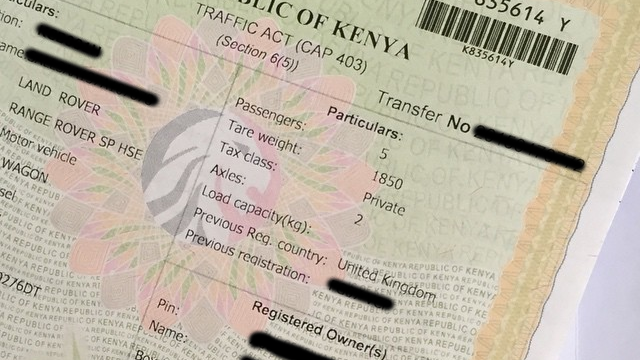
The portal also has a separate Verify Logbook tool. Its published instructions request the code generated by scanning the logbook QR code and the chassis number. This checks the document through NTSA’s verification route; it should not be confused with purchasing a copy of records.
Before buying a vehicle
Compare the official record, seller’s documents and physical chassis details. A matching document does not by itself settle every issue concerning the sale, finance, condition or authority to sell.
Tip: Start from the official NTSA domain. Keep the downloaded record and payment receipt with your transaction documents.
Archived screenshot
The image below is from the older process and does not show the current portal interface.